Have you recently updated your WordPress site only to find something amiss? If you manually (or automatically) upgraded to WordPress 6.6.0, then you might notice that all of your links now have underlines. What’s going on? Is it 2010 again?
Unfortunately, you’ve run into the “WordPress 6.6.0 underline bug,” released on July 16, 2024. Website administrators, developers, and designers were scrambling to find a solution today.
The WordPress 6.6.0 underline bug is a prime example of how even seemingly minor changes can create ripple effects, impacting user experience, accessibility, and overall brand consistency. Don’t worry, though; it doesn’t have to be a major crisis.
Overwhelmed by website maintenance and management?
Are you terrified that updating your website plugins or theme will break everything?
You’re not alone.
Today’s dynamic websites can be incredibly overwhelming. With so many plugins, themes, notifications, patches, and security updates, managing your site can quickly become too complex.
Our professional partners offer a lifeline in this sea of complexities.
Designed specifically for those overwhelmed by websites and digital marketing, our expert partners take the weight off your shoulders. They handle the technical side, ensuring your site is fast, secure, and updated, leaving you to focus solely on your business.
Ready for relief from your website-induced anxiety? Contact one of our expert partners today!
What Is the WordPress 6.6.0 Underline Bug?
The WordPress 6.6.0 underline bug surfaced after users updated their sites to WordPress version 6.6.0. It manifests as unexpected and unwanted underlines appearing under hyperlinks on a website. It seems particularly prevalent among websites using the Divi theme or Divi Builder, developed by Elegant Themes.
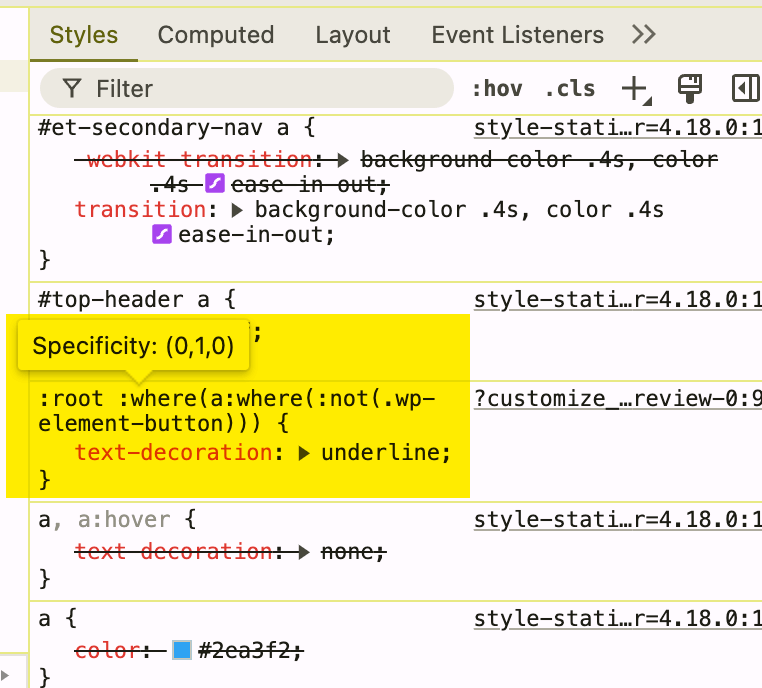
To illustrate, imagine clicking on a link in a minimalist online store with a black-and-white aesthetic and seeing a jarring bright blue underlined link. This sudden inconsistency in style can make the site look unprofessional, much like mismatched socks with a tuxedo. The root of the issue lies in a tiny but impactful piece of code introduced in WordPress 6.6.0 that instructs all links to have an underline by default.
You might wonder why not just disable this through the theme settings or a little CSS magic. This new default behavior is stubborn, making it tricky to override even when attempting to modify link styles. It has caused widespread issues for websites, especially those using the Divi theme. Certain user roles, such as editors, can be frustrated with the lack of formatting options.
Beyond Aesthetics: Why Are Underlines a Big Deal?
This is about more than just a visual quirk; this bug touches on several critical aspects of website design and user experience:
User Experience and Brand Consistency
Imagine visiting your favorite sleekly designed news site, and BAM—every single link assaults your eyes with underlines. This is not ideal for maintaining a polished and professional appearance. The WordPress 6.6.0 underline bug disrupts this consistency and potentially confuses visitors.
This can cause inconsistencies with your site title and overall website content. You want a compliant website that adheres to your brand guidelines.
Accessibility
Website accessibility is paramount for people using assistive technologies who rely on specific visual cues. These rogue underlines interfere with that and hinder users from navigating a website effectively.
You will want to run a site speed test as well, as too many plugins can slow down page optimization.
The Fallout: Who’s Impacted by This Tiny Line?
This seemingly insignificant line creates significant headaches for:
Website Owners
Imagine waking up one morning to find your site looking like it’s gone haywire. Unwanted underlines disrupting a carefully crafted brand aesthetic can cause concern. You might even find your inbox flooded with concerned emails and messages from confused visitors.
This can result in a potential loss of trust and a negative impact on your professional image. When this happens, some website owners seek out WordPress experts to fix the issues for them. Other times, user permission restrictions might prevent you from editing the content.
Website Hosting Providers
Consider companies providing fully managed WordPress hosting—suddenly flooded with frantic calls and tickets about these rogue underlines. One website designer’s minor inconvenience is another’s logistical nightmare.
This can be frustrating for web developers, especially when using a testing tool to diagnose the problem. They want to build sites that are free of errors and provide a positive user experience design for their clients.
Tackling the WordPress Underline Bug: Solutions
As with all things tech, there are workarounds to subdue those unruly underlines while we anticipate a permanent fix from WordPress. The table below provides a quick glance at possible solutions.
| Solution | Description |
|---|---|
| Downgrade to WordPress 6.5.5 | Reverting to the previous WordPress version offers a quick fix. |
| Restore From Backup | Use a site backup from before the WordPress 6.6.0 update to get back to normal. |
| Implement Temporary CSS Solutions | Camouflage underlines until an official patch emerges using CSS. |
1. Downgrade to WordPress 6.5.5
Reverting to the previous stable version offers a quick fix, particularly for sites without complex e-commerce functionalities. 37SOLUTIONS even created a comprehensive knowledge base article on this issue. This approach ensures you regain control of your link styling and allows your website to return to its former glory—at least temporarily.
Remember to always back up your site before any significant changes to avoid data loss. Make sure your web hosting services provide you with an easy way to do so. There are tons of web hosting comparisons online that show which ones have the best website backup solutions.
2. Restore From Backup (Proceed With Caution)
A site backup from before the WordPress 6.6.0 update might be your time machine back to normal. This approach is best suited for non-ecommerce sites without recent significant changes or leads collected after the backup. However, be mindful.
Restoring your website will overwrite any modifications made post-backup. Always double-check your backup’s integrity before initiating a restore. 37SOLUTIONS offers fully managed WordPress hosting on premium WordPress servers for the best possible experience.
3. Implement Temporary CSS Solutions
You can camouflage those defiant underlines until an official patch emerges. A widely adopted approach involves adding a snippet of CSS code to your site’s style sheet (style.css). This line essentially tells all links, except for buttons defined as a “wp-element-button” class, to relinquish their new-found love for underlines:
:root :where(a:where(:not(.wp-element-button))) {text-decoration: none;}
For example, WordPress support suggested adding this line to address users complaining that the site name and buttons in their header had become underlined following the update to WordPress 6.1. For a more visual illustration, you can refer to screenshots shared by @cgscomputers on the WordPress support forum that clearly demonstrate this particular bug.
Keep in mind that some themes might have theme limitations that prevent you from adding custom CSS. Be sure to consult with WordPress experts or look at web host reviews to see if they offer any troubleshooting steps if you run into any problems.
4. Plugins and Patience
The WordPress developers are known for being pretty on top of things like this. A future version of WordPress or the Gutenberg plugin is likely to address the underline issue. Until then, keep an eye on updates and announcements from the WordPress community. Consider exploring whether temporary plugins offer to banish those underlines until then.
WordPress is always coming out with new versions, so you always want to make sure you are using the latest WordPress version. You can explore various partner types to see which ones specialize in WordPress and web development. Some partner solutions even specialize in fixing bugs like this one.
Managing Future WordPress Updates
The WordPress 6.6.0 underline bug brings home an important point. Software updates, though necessary, sometimes throw unexpected curveballs our way. This doesn’t mean swearing off updates, but it highlights why having a staging site to test updates is vital before pushing them live.
The chaos of this underline situation underscores the significance of thorough testing, proactive communication within the WordPress ecosystem, and having reliable backups (because sometimes, time travel is the only option.). Engage in online WordPress communities for shared experiences and valuable insights—because two heads (or more) are often better than one in such situations.
It’s also a great place to look for potential plugin conflicts. Sometimes one plugin can interfere with another plugin and cause unintended issues on your site. It’s good practice to have a security test performed regularly to check for vulnerabilities.
FAQs about WordPress 6.6.0 underline bug
How do I remove the underline from text in WordPress?
You can remove underlines using CSS. Add :root :where(a:where(:not(.wp-element-button))) { text-decoration: none; } to your theme’s style.css file to achieve this.
There are other ways to adjust your text formatting options within WordPress itself, though they may not always be effective. Be sure to familiarize yourself with all of the editor options.
How to make a link not underlined in WordPress?
Similar to removing underlines, you can make links not underlined using CSS by applying the style text-decoration: none; to your link elements.
Some prefer to make links a different text color so they stand out more. Make sure your font options are easy to read, and avoid any unnecessary formatting options.
Why is my link underlined?
If your link is underlined in WordPress after an update, especially to version 6.6.0, you’ve likely been impacted by the infamous WordPress 660 underline bug. Fear not, this article provides potential solutions. This often affects those using the Divi theme or builder.
If you’re noticing other issues with your website, such as slow loading times, your web hosts might be the culprit. Look for web hosts that can guarantee top-notch web vitals. You can also explore the possibility of switching to a language switcher plugin.
How do I turn off underline in CSS?
Turning off underlines in CSS involves using the text-decoration property and setting its value to none like so: text-decoration: none; . This line, added to your stylesheet, can help you override the default underlining of hyperlinks.
a When working with custom CSS, it’s a good practice to inspect custom CSS thoroughly to ensure there are no conflicts. Consider reaching out to our technology partners for assistance if needed. They’ve been fixing this problem for customers all day today.
Frustrating but Fixable
While frustrating, the WordPress 6.6.0 underline bug highlights the importance of staying informed about WordPress updates. By utilizing the provided solutions, such as downgrading, restoring from a backup, or applying a temporary CSS patch, website owners can regain control of their site’s design and ensure a consistent brand experience for their visitors.
About the Author
Gregory Duffie is a WordPress veteran with expertise in managing and hosting WordPress websites for a diverse clientele. Contact 37SOLUTIONS for managed WordPress hosting, development, and concierge service today.